GSE Smart IPTV: How to Use It on iPhone and iPad (2026 Guide)
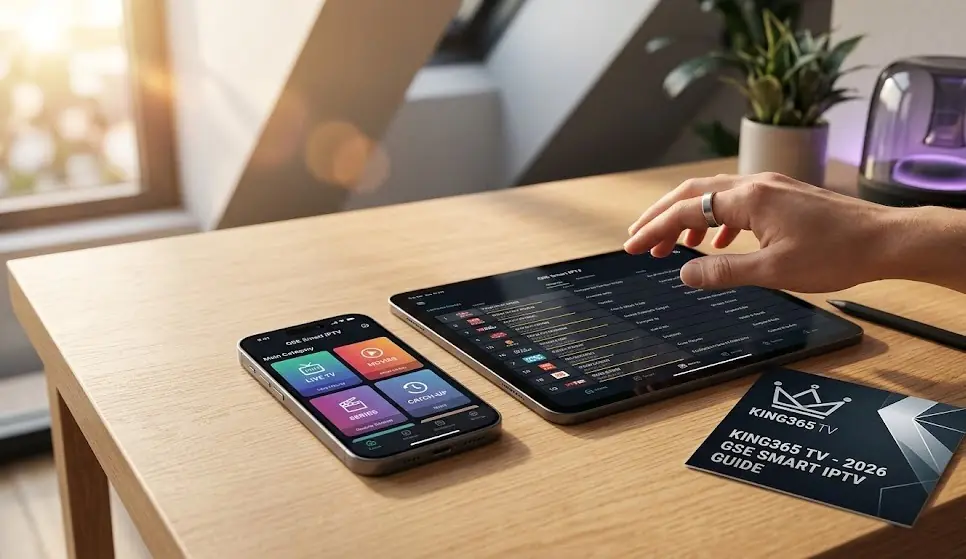
Apple devices are notoriously strict with streaming apps, but GSE Smart IPTV remains a top-tier solution. Here is how to set it up perfectly in under 5 minutes.
💡 Astuce : Ne perdez pas de temps à configurer, téléchargez notre app officielle ici .
Streaming on Apple Devices Made Easy
If you own an Android device, you have dozens of amazing IPTV apps like TiviMate or XCIPTV. But if you are using an iPhone, iPad, or even an Apple TV, the App Store is much more restrictive.
Fortunately, GSE Smart IPTV has been around for years and remains one of the most reliable, feature-rich players for the iOS ecosystem. It handles massive playlists smoothly and supports advanced features like EPG (Electronic Program Guide) and Catch-up.
Here is how to connect your King365 TV subscription to your Apple device.
---
Step 1: Download the Application
Unlike Smart TVs where you have to use USB drives or complex workarounds, getting GSE Smart IPTV on iOS is perfectly straightforward.
1. Open the App Store on your iPhone or iPad.
2. Tap the search icon and type `GSE Smart IPTV`.
3. Look for the app with a dark icon featuring a stylized 'GSE' logo.
4. Tap Get to download and install the app.
---
Step 2: Add Your King365 TV Subscription
GSE Smart IPTV gives you multiple ways to add a playlist, but the most stable method—which guarantees your VODs and EPG load correctly—is the Xtream Codes API.
1. Open the application. Accept the terms and conditions if prompted.
2. Tap the Menu icon (the three horizontal lines in the top left corner).
3. Select Xtream-Codes API from the menu.
4. Tap the '+' (Plus) icon in the top right corner to add a new server.
5. Fill in the details provided in your King365 TV welcome email:
Any Name: Type King365 TV*.
Server URL: Paste the server link (e.g., http://premium-server.com:8080*).
- Username: Enter your username.
- Password: Enter your password.
6. Tap Add or Login.
Note: Give the app a minute to download the channels, movies, and series. Since King365 TV offers over 15,000 channels, it requires a brief moment to sync.
---
Step 3: Optimize the Settings
To get the best experience without buffering, you should tweak a few default settings.
Update the EPG: Go to the main menu, select EPG Program Guide*, and tap the refresh icon. This ensures your TV guide is always up to date.
Adjust the Buffer: If you are on a mobile network (4G/5G) and experience minor stuttering, go to Settings > Player Settings* and increase the Buffer Size. This tells the app to load a few extra seconds of video in advance, ensuring smooth playback even if your connection drops briefly.
---
Free vs. Pro Version
GSE Smart IPTV is free to download, but the free version includes banner ads and occasional pop-ups.
If you use your iPad to watch movies regularly, we highly recommend upgrading to the PRO version via a one-time in-app purchase. It removes all advertisements and unlocks a cleaner, more immersive viewing experience.
---
Conclusion
Your iPhone has a stunning Retina display; it deserves a high-quality video feed. GSE Smart IPTV is the perfect bridge between your Apple hardware and our premium servers.
Ready to Watch on the Go?
You have the right app on your iPhone. Now you just need the right content. Join King365 TV today and access thousands of channels in pristine 4K quality wherever you are.
📱Get Your King365 TV Pass