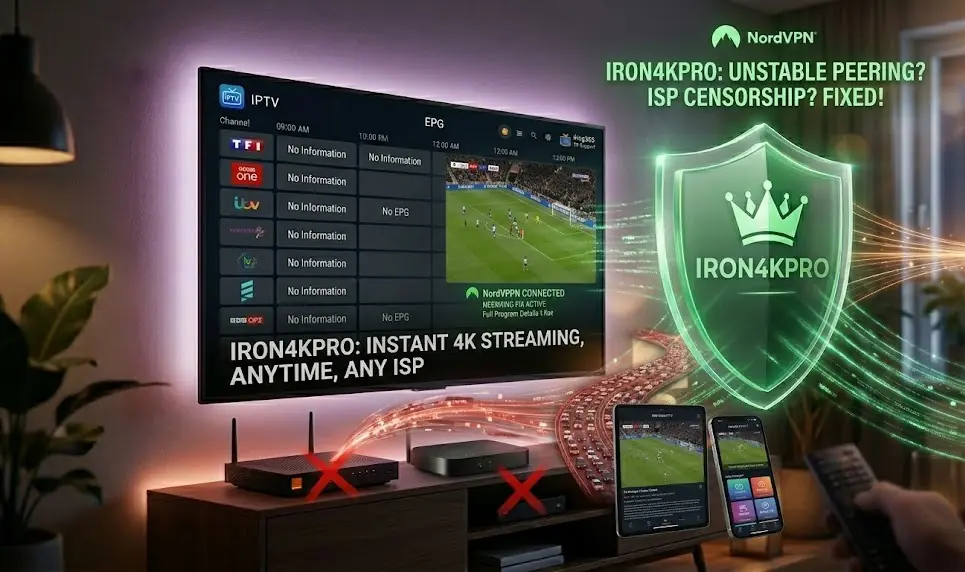
EPG Issues: How to Fix a Missing or Blank IPTV Program Guide
A missing Electronic Program Guide (EPG) is frustrating but usually very easy to fix. Here is our step-by-step troubleshooting guide to get your TV schedule back.
💡 Astuce : Ne perdez pas de temps à configurer, téléchargez notre app officielle ici .
The Annoyance of 'No Information'
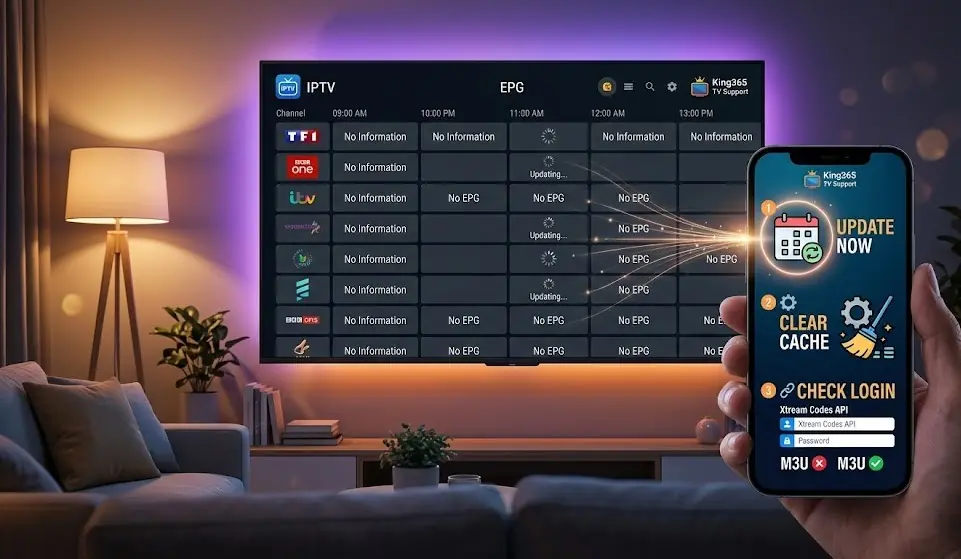
You sit down to watch TV, open your favorite IPTV application, and instead of seeing what is currently airing, every single channel displays 'No Information' or 'No EPG'.
The Electronic Program Guide (EPG) is what makes modern IPTV feel like traditional cable. When it breaks, navigating your channels becomes a guessing game.
Before you assume the King365 TV servers are down, you should know that 95% of EPG problems are local app issues. The data is there, but your application simply failed to download it. Here is how to fix it in a few simple steps.
---
Step 1: Force a Manual EPG Update
Most apps are set to download the TV guide once a day. If your internet disconnected exactly when the app tried to download the guide, it will stay blank until the next day. The easiest fix is to force a manual download.
- On IPTV Smarters Pro: Go back to the main menu. Click on the Install EPG icon or the circular refresh icon next to the Live TV button.
- On TiviMate: While watching TV, press the left or OK button to open the menu. Go to Settings > EPG > Update EPG.
- On XCIPTV: Click the menu icon and navigate to Settings > EPG > Force EPG Update.
- M3U Link: If you pasted a long URL ending in `.m3u`, the application does not automatically know where the EPG is. You often have to manually enter a second link, called the EPG URL. If you forgot this, your guide will remain blank.
- Xtream Codes API: This is the method we highly recommend at King365 TV. By entering your server URL, username, and password separately, the application automatically pulls both the channels and the EPG data seamlessly.
Wait 1 to 2 minutes. The EPG data file is quite large, so give your device time to process it.
---
Step 2: Clear the Application Cache
If forcing an update didn't work, your app might be stuck holding onto a corrupted EPG file. You need to clear its memory.
If you are using an Android TV, Firestick, or Android Box:
1. Go to your device's main Settings (the gear icon).
2. Navigate to Applications > Manage Installed Applications.
3. Find your IPTV app (e.g., TiviMate or Smarters) and click on it.
4. Select Clear Cache (Warning: Do NOT click 'Clear Data', or you will delete your login details!).
5. Reopen the app and let it sync from scratch.
---
Step 3: Xtream Codes vs. M3U Links
How did you log into your app? This makes a huge difference.
If your app supports Xtream Codes, always use it instead of a raw M3U link.
---
Bonus Fix: The Guide Shows the Wrong Time
What if the guide is there, but the programs are off by 2 or 3 hours? This is a timezone mismatch between the server and your device.
Almost every premium IPTV app has a feature called EPG Time Shift or EPG Offset.
Go to your app's EPG settings and adjust the 'Time Shift' by +1, -1, or however many hours you are off by, until the schedule aligns perfectly with what is airing on screen.
Tired of Missing EPGs?
A flawless TV guide requires a powerful server. King365 TV provides fully synced, up-to-date EPG data for over 15,000 channels globally. Upgrade your experience today.
📅Get Your Premium Access