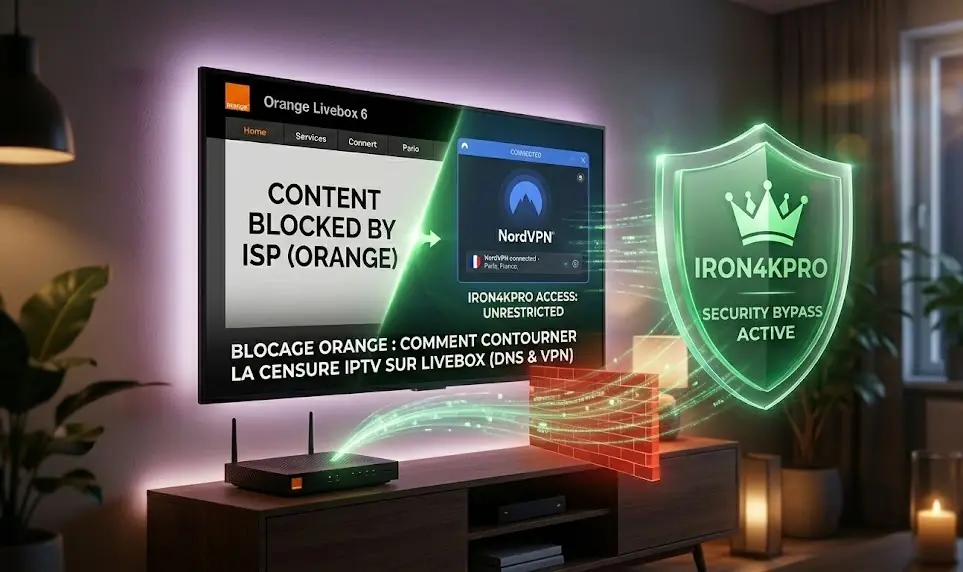
Orange ISP Blocking: How to Bypass IPTV Censorship on Livebox (DNS & VPN)
If your Iron4kpro subscription works perfectly on 4G but freezes on your home Wi-Fi, your ISP is blocking you. Here is the ultimate guide to bypassing Orange's IPTV censorship.
💡 Astuce : Ne perdez pas de temps à configurer, téléchargez notre app officielle ici .
The 'Match Day' Blackout
It is a classic scenario: Your Iron4kpro subscription has been working flawlessly all week. But on Tuesday night, right as the Champions League match begins, your screen freezes, buffers endlessly, or goes completely black.
You might think the server crashed, but there is a simple test: Turn off your Wi-Fi and test the IPTV app on your smartphone's 4G/5G data.
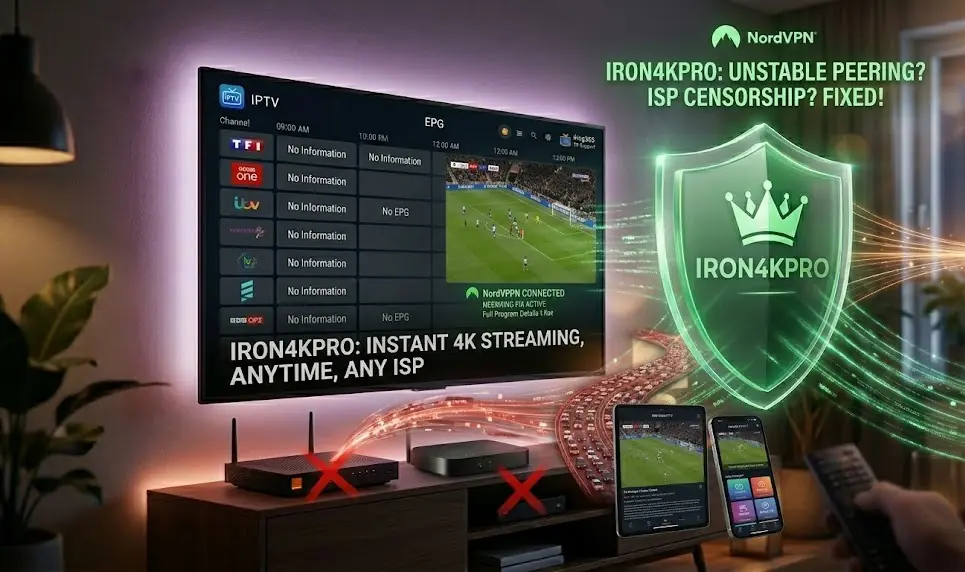
If the stream works perfectly on your mobile data but fails on your home Wi-Fi, the Iron4kpro server is fine. Your Internet Service Provider (ISP) is actively blocking you.
ISPs like Orange are known to deploy aggressive filtering algorithms during live sporting events. Here is how you can regain your freedom and bypass this censorship.
---
Solution 1: Change Your DNS (The Quick Fix)
By default, your Orange Livebox uses its own DNS (Domain Name System) servers to translate web addresses. This allows Orange to easily intercept and block connections to known IPTV servers.
The fix is to switch to a neutral, public DNS like Cloudflare (`1.1.1.1`) or Google (`8.8.8.8`).
Note: Orange aggressively locks the Livebox settings, meaning you cannot change the DNS on the router itself. You must change it directly on your viewing device.
How to change DNS on Android TV / Firestick:
1. Go to your device's Settings (the gear icon).
2. Select Network & Internet and click on your connected Wi-Fi network.
3. Scroll down to IP Settings and change it from DHCP to Static.
4. Keep your IP Address and Gateway as they are, but when it asks for DNS 1, enter `1.1.1.1`.
5. For DNS 2, enter `1.0.0.1`.
6. Save and restart your device.
---
Solution 2: Use a VPN (The Ultimate Fix)
While changing your DNS works for basic blocks, ISPs are getting smarter. They now use DPI (Deep Packet Inspection) to analyze your traffic and throttle video streaming directly.
To beat DPI, you need a VPN (Virtual Private Network).
A VPN encrypts 100% of your internet traffic. When you turn it on, your ISP (Orange) can no longer see what you are doing. They don't know you are streaming IPTV; all they see is scrambled data.
How to set it up:
1. Subscribe to a premium, high-speed VPN (we highly recommend NordVPN, CyberGhost, or ExpressVPN).
2. Download their official app from the Google Play Store or Apple App Store directly onto your Smart TV or Android Box.
3. Open the VPN app and connect to a server close to your real location (for example, if you are in Paris, connect to a Paris VPN server to maintain maximum speed).
4. Once connected, open your IPTV app. The block will be instantly lifted.
---
Are Iron4kpro Servers VPN-Friendly?
Yes! Some low-quality IPTV providers block VPNs to save bandwidth, which traps you if your ISP decides to censor you.
At Iron4kpro, our premium infrastructure is 100% VPN-friendly. We actually encourage our customers to use a VPN to protect their privacy, avoid ISP throttling, and guarantee a buttery-smooth 4K streaming experience, even on the busiest match days.
Stream Without Limits
Don't let your ISP dictate what you can watch. Use a VPN to bypass the blocks, and connect to Iron4kpro for an unthrottled, premium viewing experience.
🛡️Get Secure Premium Access