SFR & Bouygues Blocking: How to Stabilize Your IPTV Stream During Matches
If your Iron4kpro stream drops in quality or buffers heavily during match days on SFR or Bouygues, your ISP is likely throttling you. Here are the top tips to lock in a stable connection.
💡 Astuce : Ne perdez pas de temps à configurer, téléchargez notre app officielle ici .
The 'Big Match' Bottleneck
You have invited friends over, the snacks are ready, and the biggest football match of the season is about to start. But right after kick-off, your Iron4kpro stream starts micro-stuttering, or worse, the 4K picture suddenly drops to pixelated standard definition.
If you are an SFR or Bouygues Telecom customer, you are not alone.
During highly anticipated sporting events, ISPs use Deep Packet Inspection (DPI) to monitor heavy video traffic. To save bandwidth on their networks, they intentionally throttle (slow down) connections to known IPTV servers. Your 1 Gbps fiber connection essentially gets restricted to a trickle.
Here are three highly effective ways to bypass this interference and stabilize your Iron4kpro stream.
---
Tip 1: Ditch the Wi-Fi (The Hardware Fix)
Before blaming your ISP's throttling, we must eliminate local network congestion.
The Wi-Fi routers provided by SFR (La Box) and Bouygues (Bbox) are notoriously inconsistent when handling sustained, high-bitrate 4K video streams, especially if other devices in your home are connected simultaneously.
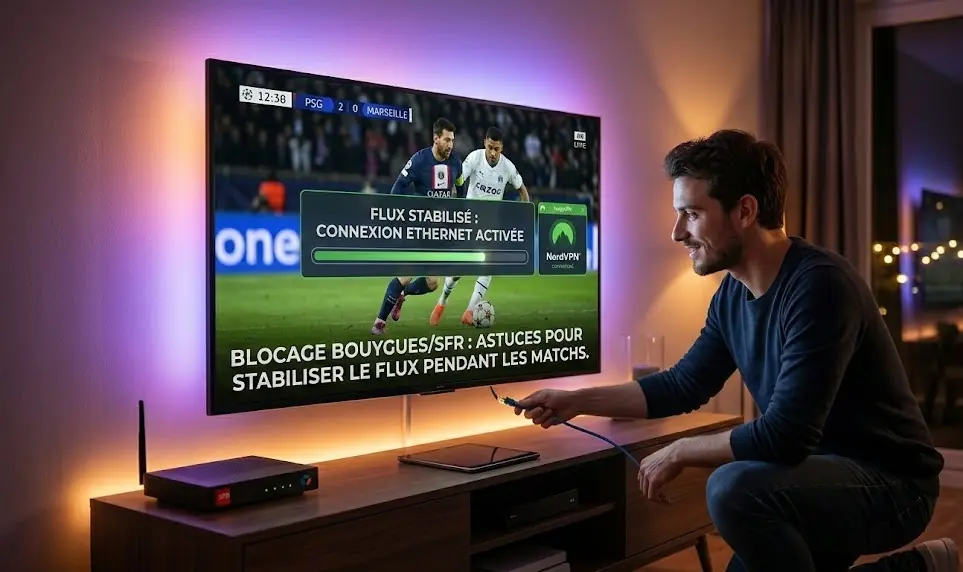
- The Fix: Connect your Smart TV or Android Box directly to your SFR/Bouygues router using a Cat 6 Ethernet cable.
- Why it works: A hardwired connection completely eliminates Wi-Fi packet loss, instantly reducing micro-stuttering and giving your device the raw, uninterrupted speed it needs to process Iron4kpro's 4K feeds.
- The Fix: Log into your router's administration panel (usually by typing `192.168.1.1` or `192.168.1.254` into your web browser).
- Navigate to the Network or Internet settings.
- Find the IPv6 toggle and switch it to Disabled or Off.
- Save the settings and restart your router. This forces your network to use the highly stable IPv4 route to our servers.
- The best setup for Iron4kpro: Download a trusted VPN (like NordVPN or CyberGhost) directly to your TV. Connect to a server in a neighboring country just before the match starts.
---
Tip 2: Disable IPv6 on Your Router
Many IPTV applications and servers are optimized for the traditional IPv4 network protocol. SFR and Bouygues heavily push the newer IPv6 protocol by default on their routers.
This mismatch can sometimes cause routing loops, leading to "ghost buffering" where the stream simply stops for a few seconds for no apparent reason.
---
Tip 3: The Match-Day Shield (Use a VPN)
If you have plugged in an Ethernet cable and the stream is still buffering right at 8:45 PM on a Champions League night, your ISP is actively throttling you via DPI.
The only way to defeat DPI is to blind the ISP. You need a Premium VPN.
How it stabilizes your stream: A VPN encrypts your traffic. SFR or Bouygues will see that you are downloading data, but they cannot see what* that data is. Because they cannot identify it as an IPTV stream, their automated throttling algorithms will ignore it, allowing you to utilize your full internet speed.
---
Engineered for Stability
At Iron4kpro, we employ load-balanced, 100Gbps servers specifically designed to handle massive traffic spikes during global sporting events. By ensuring your local network is optimized and using a VPN to bypass ISP interference, you guarantee yourself a front-row seat to the action, without the buffering.
Never Miss a Goal Again
Combine our optimized server infrastructure with a solid connection to permanently defeat ISP buffering. Upgrade to Iron4kpro today for the ultimate sports experience.
⚽Get Your Premium Pass